Installing and configuring VS Code
If you haven’t already done so, download and install Visual Studio Code
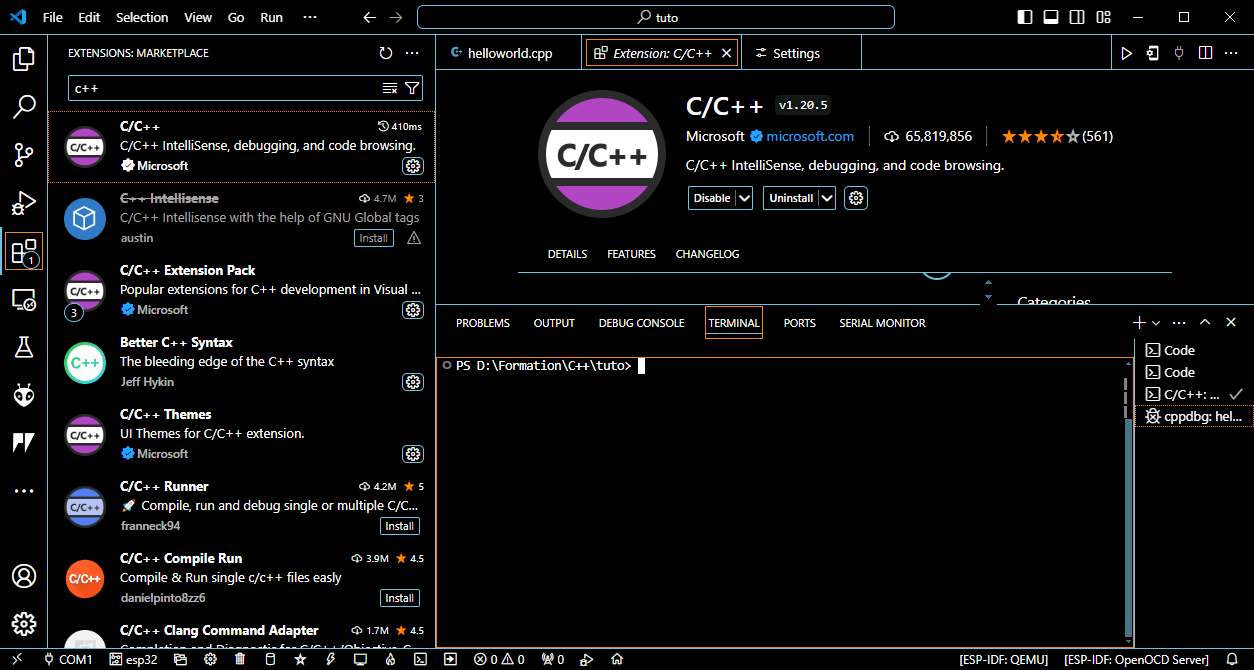
Installing the C\ extension
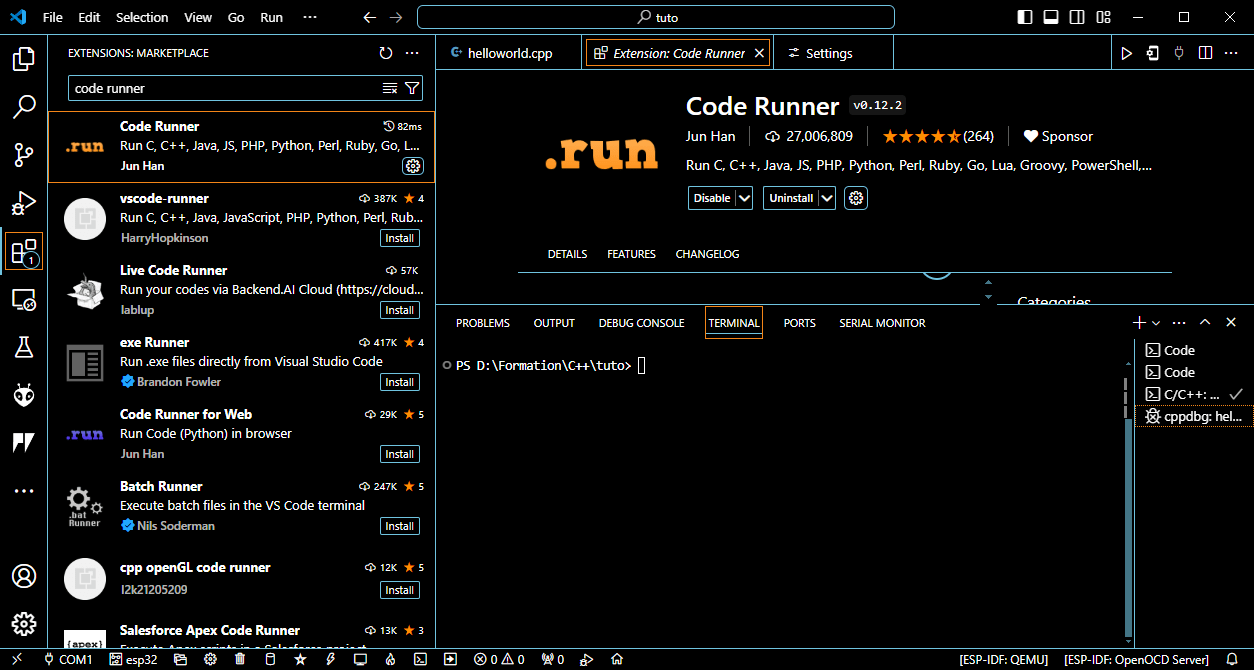
Installation of the Code Runner extension. This extension is optional, but will enable you to run code in an external terminal to use user inputs (cin). In the parameters, activate the Code-runner: Run In Terminal option.
Installing a compiler
To compile, run and analyze your code you’ll need tools like GNU.
Download and unzip a version of GNU Compiler Collection (GCC) if you don’t already have it on your computer.
g++ --version
You can also install a GCC version from MSYS2
$ pacman -S mingw-w64-ucrt-x86_64-gcc
Create your C++ project
Once the various extensions have been installed, you can create your C++ project. To do this, simply create a folder, open VS Code on that folder and create a .cpp file. You can do this via the VS Code interface or from the command line
mkdir myproject
cd myproject
code .
Copy the Hello world code into the source file.
#include <iostream>

int main()
{
    std::cout << "Hello World" << std::endl;
    return 0;
}
Compiling and testing your program
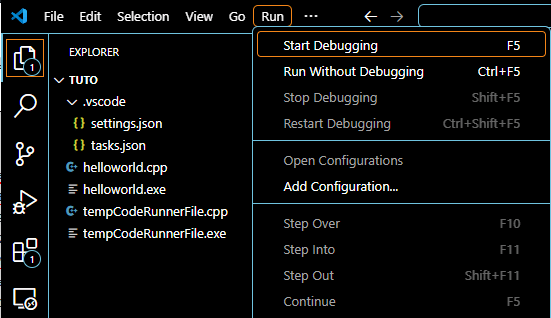
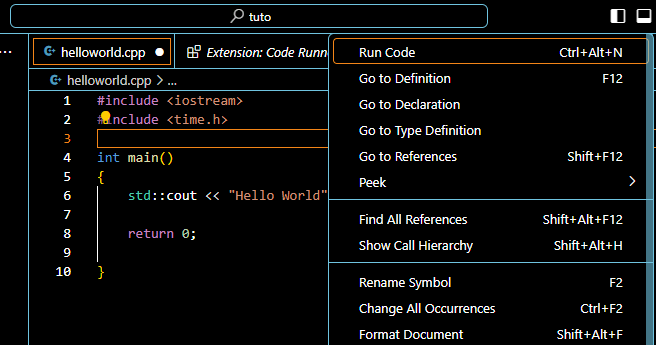
Pour lancer le code vous pouvez utiliser le menu Run > Start Debugging (F5) qui lancera le programme dans la console de debug ou faire un clique-droit sur l’éditeur et lancer Run Code (Ctrl+Alt+N) qui le lancera dans le terminal (si Code runner est activé)
You can also do this on the command line from the terminal
g++ helloworld.cpp # -> a.exe executabl. compile and link
./a.exe # execute file
g++ -S helloworld.cpp # -> helloworld.s assembly source file. compile
g++ -c helloworld.cpp # -> helloworld.o object file. compile and assemble
Adding an external C++ library to VS Code
You can add external libraries or create your own. For VS Code to compile the libraries with the program, you must specify the access path in the tasks.json file (e.g.”–include=include/utils.cpp”)
{
    "tasks": [
        {
            "type": "cppbuild",
            "label": "C/C++: g++.exe build active file",
            "command": "C:\\MinGW\\bin\\g++.exe",
            "args": [
                "-fdiagnostics-color=always",
                "-g",
                "${file}",
                "-o",
                "${fileDirname}\\${fileBasenameNoExtension}.exe",
                "--include=include/utils.cpp",
            ],
            "options": {
                "cwd": "${fileDirname}"
            },
            "problemMatcher": [
                "$gcc"
            ],
            "group": {
                "kind": "build",
                "isDefault": true
            },
            "detail": "Task generated by Debugger."
        }
    ],
    "version": "2.0.0"
}
to compile the programmer, you need to compile and link the two files
g++ helloworld.cpp include/utils.cpp -o helloworld
# or
g++ -c helloworld.cpp include/utils.cpp # get object files
g++ -o helloworld.exe helloworld.o include/utils.o
./helloworld.exe #run program
Measure program execution time
A fairly straightforward method of measuring program execution time is to use the time.h library and measure the time elapsed between program start and end.
To test the execution time, we create a function that counts from 0 to n with a certain delay between each iteration.
void count_to(int n = 10, int delay = 0);
#include <iostream>
#include <windows.h>
//#include <unistd.h>

void count_to(int n, int delay)
{
    for (int i=0;i<=n;i++){
        std::cout << i << std::endl;
        Sleep(delay);
    }
}
Then, in the main code, we measure the time before and after execution of the count_to() function
#include <iostream>
#include <time.h>
#include "include/utils.h"

clock_t start, end;
double cpu_time_used;

int main()
{
    std::cout << "Hello World" << std::endl;

    start = clock();

    count_to(10,100);

    end = clock();
    cpu_time_used = ((double) (end - start)) / CLOCKS_PER_SEC;
    printf("Execution time: %f seconds\n", cpu_time_used);

    return 0;
}
The console gives the following result
Hello World
0
1
2
3
4
5
6
7
8
9
10
Execution time: 1.180000 seconds
Using the VS Code debugging tool
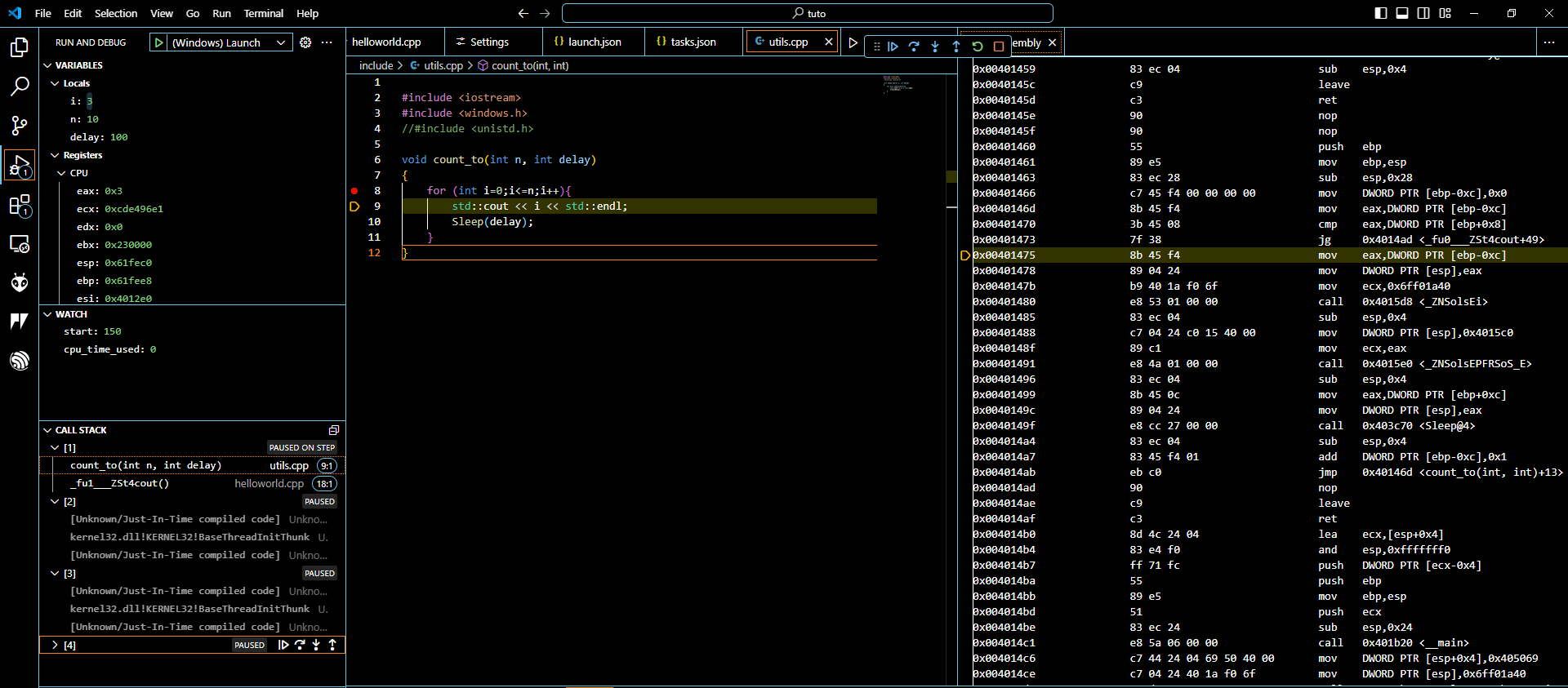
The Run and Debug function lets you execute code step by step, placing breakpoints at various points in the code (identified to the left of the line number by a red dot). It also allows you to observe variables and registers as they are executed. In this way, you can follow the evolution of the code step by step in search of any errors.
The code will run normally up to the first breakpoint, then you can continue progressing to the next breakpoint, or run the code step-by-step from that point using the navigation buttons

You can observe the values of variables or registers at each step in the VARIABLES tab. Or observe certain variables in WATCH.
You can also view the compiled assembler code by opening the “disassembly” view, right-clicking on the editor and selecting “Open Disassembly View”.
Troubleshoot
- “thread” is not recognized
try installing MinGW-w64 from MSYS2 and adding C:\msys64\ucrt64\bin to the environment variables. Check that the compiler used is g++.
- Using cout raises a segmentation error
As an intermediate solution, you can replace the cost with printf
check that the libstdc++-6.dll library is in the same location as the compiler, using the vs code debug console
Loaded 'C:\Program Files\Tesseract-OCR\libstdc++-6.dll'. Symbols loaded.
#instead of
Loaded 'C:\msys64\ucrt64\bin\libstdc++-6.dll'. Symbols loaded.
- Run Code gives different results from Debug Code
Make sure that the commands are the same for both functions (in my case, the “-g” flage was a problem).
in the tasks.json file (debug)
//
            "command": "C:\\msys64\\ucrt64\\bin\\g++.exe",
            "args": [
                "-fdiagnostics-color=always",
                "-g",
                "${file}",
                "-o",
                "${fileDirname}\\${fileBasenameNoExtension}.exe"
            ],
in the settings file (runner code)
   "code-runner.executorMap": {

        "cpp": "cd $dir && g++ -g $fileName -o $fileNameWithoutExt && $dir$fileNameWithoutExt",

    },